Enjoy unlimited access for 30 days. Check out the features. You are in for a pleasant surprise!
To enable remote access, two components of RemotePC need to be downloaded - Remote Access Host and Remote Access Viewer.
Download Remote Access Host application on the remote computer
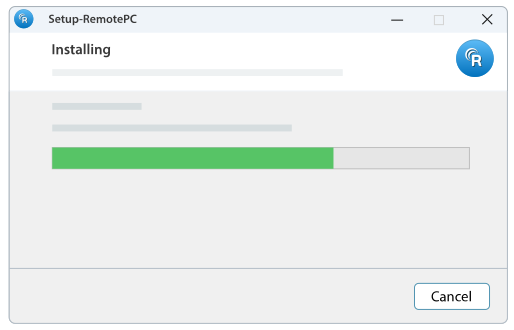
Setting up the Remote Access Host is simple. The entire process takes less than a minute.
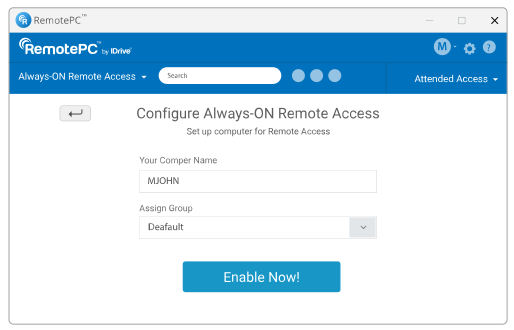
After application download, you will be prompted for RemotePC server authentication. Register the remote host computer on the RemotePC server by providing the remote host computer description and a ‘Host Key’.
There are two levels of authentication for security, one for the main RemotePC account and the other for the host computer (Host Key).
Remote Access Host (Windows 2000 / XP / 2003)
Version 4.4.1
Released on 09/16/2008
Remote Access Host
(Only for Windows Vista)
Version 4.4.1
Released on 09/16/2008
Download Remote Access Viewer application on the local computer
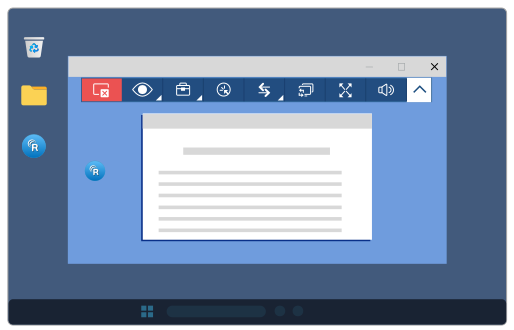
Remote Access Viewer is used for connecting to the remote computer. Once you have setup one or more hosts, download the Remote Access Viewer application on the local computer. You will be prompted to enter your username and password. A list of host descriptions that you had given while setting up the host computers would be shown. Just connect to the particular host you wish to access by entering the ‘Host Key’.
Remote Access through web browser
Alternately, you can connect to your remote computer using any web browser. Log on to your account from the RemotePC website. You will see a list of all the available hosts (remote computers) in your account. Select the host you wish to access and enter the Host Key to access it.